
Operations
Operations
How to Move Off Spreadsheets Without Stopping the Shop
How to Move Off Spreadsheets Without Stopping the Shop
How to Move Off Spreadsheets Without Stopping the Shop

By
By
By
Matthew Quigley
Matthew Quigley
Matthew Quigley
All field notes
All field notes


At a glance
Most shops do not stay on spreadsheets because they love them. They stay because switching feels like stopping work for a month.
You do not need a big-bang switch. Start new jobs in the new system and let old jobs finish where they are.
Move only what you need: customers, open jobs and your quoting rates. Leave the history in the spreadsheet.
The plan below runs over four weeks while the shop keeps working.
Whatever system you move to, check you can import customers from a spreadsheet and export your data any time.
Why switching feels so risky
If your shop runs on spreadsheets, the spreadsheet is not just a file. It is how quotes get built, how the job list stays current and how invoices get checked.
So the fear is reasonable. If the new system goes wrong, quotes go out late, jobs get missed and invoices slip.
Shops that have been through a bad ERP project know the feeling well. Months of setup, consultants, and a system nobody used. We wrote about that pattern in why manufacturing ERPs fail small job shops.
The good news is that a small shop does not need a project. It needs a plan that never stops the work.
The rule: new jobs in, old jobs out
The safest switch is the simplest one.
From a set day, every new quote goes in the new system.
Jobs already running finish in the spreadsheet.
After a few weeks, the spreadsheet has nothing live left in it.
Nobody has to move fifty open jobs in a weekend. Nobody has to stop quoting. The old system winds down while the new one fills up.
What to move, and what to leave
You do not need your whole history on day one.
Move | Leave in the spreadsheet |
|---|---|
Active customers and contacts | Customers you have not quoted in years |
Your labour and machine rates | Old quotes that were never won |
Common materials and their prices | Closed jobs and their history |
Any job still open after the cut-over | Last year's invoices (your accounts already hold them) |
Keep the old spreadsheet as a read-only archive. If you need an old quote, it is still there.
Before you start: tidy three things
An hour of tidying up front saves days later.
☐ Customer list. One row per customer, with name, contact, email and phone in separate columns. Remove duplicates.
☐ Rates. Write down your hourly rates for labour and each machine, and your standard markups. If they live in someone's head, get them on paper.
☐ Open jobs. List every job that is quoted, won or in progress, with a job number and status.
If your rates are rough, this is a good moment to check them. Our welding cost calculator, laser cutting cost calculator and sheet nesting cost calculator can help.
A four-week plan

Week 1: set up and practise
Bring your customer list across.
Enter your rates.
Re-create two recent quotes in the new system and compare them with what you sent. If the numbers differ, find out why.
Pick a cut-over day, ideally a Monday.
Week 2: new quotes only
From the cut-over day, every new quote goes in the new system.
Keep running live jobs from the spreadsheet and whiteboard as usual.
Keep a short list of anything that feels slow or missing.
Week 3: new jobs on the board
Quotes you have won are now orders and jobs in the new system.
Put the job board or floor screen where the floor can see it. Leave the whiteboard up for one more week, side by side.
Raise purchase orders for new jobs from the new system.
Week 4: invoice and retire
Invoice the first jobs that went all the way through.
Finish the last old jobs in the spreadsheet.
Take the whiteboard down, or keep it for notes only.
Save the spreadsheet as a read-only archive.
If a week slips, that is fine. The shop never stopped, so nothing is lost by taking longer.
Getting the floor on board
The owner usually drives the switch. The floor decides whether it sticks.
Show, do not tell. Put the job board on a screen by the roller door. People trust what they can see.
Keep it to one change at a time. The floor does not need to learn quoting. They need to see what is next.
Ask what is missing. If the screen does not show something the whiteboard did, fix it or put it back on the board.
Our post on whiteboards vs live schedules covers what the floor actually needs to see.
Signs the switch is working
After four weeks, check:
☐ Every new quote went into the new system.
☐ Nobody retyped a won quote into a job sheet.
☐ The floor checked the board without being asked.
☐ At least one job went from quote to invoice in one record.
☐ Nobody had to ask "which file is the latest?"
If most of those are ticked, you are off spreadsheets.
Common mistakes to avoid
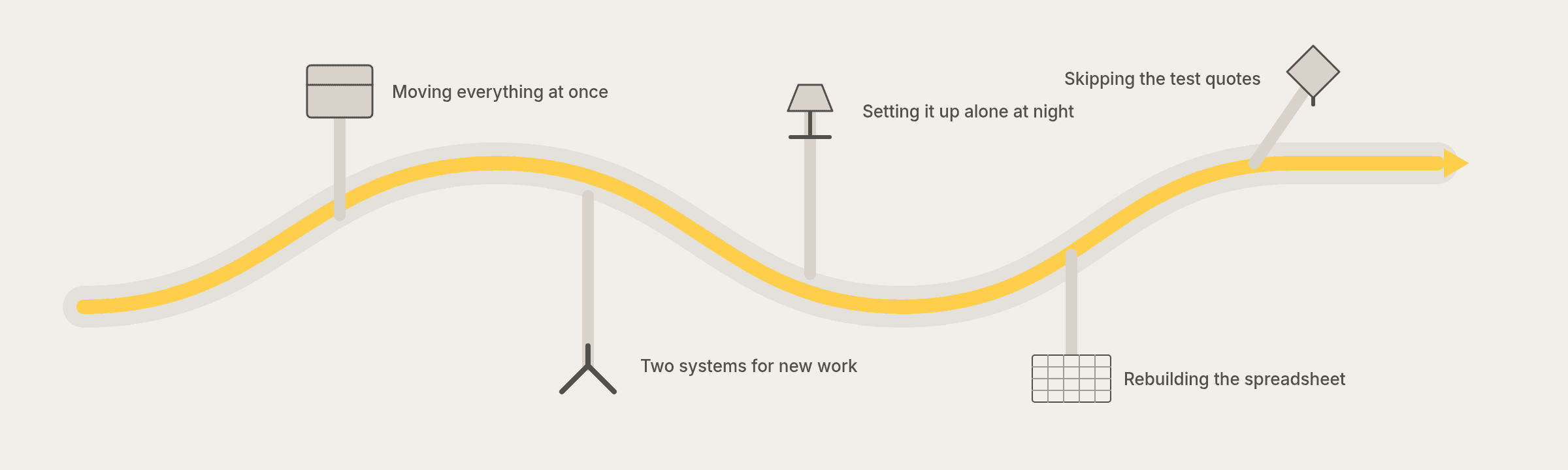
When a switch in a small shop stalls, it is usually for one of a few reasons. If you are still deciding whether the spreadsheet is the problem, start with when Excel becomes the bottleneck
Moving everything at once. Trying to load every old job and quote turns a four-week switch into a three-month one. Leave history where it is.
Running two systems for new work. If some new quotes go in the spreadsheet "just this once", nobody trusts either. Pick the day and hold it.
Setting it up alone at night. If only the owner knows how it works, it will stall the first busy week. Show at least one other person.
Rebuilding the spreadsheet in the new system. The point is to stop working around a file. Use the new system the way it is built before you try to bend it.
Skipping the test quotes. If you never compared a new quote with an old one, you will not trust the numbers.
What about the accounts?
Your accounting software stays where it is. The switch covers quoting, jobs, buying and the floor.
If you use Xero, MirrorWorks is planned to send invoices into it, and that connection is marked as coming. Until it is live, plan to carry invoices across the way you do today, and treat it as one less retype once it lands.
Make sure you can leave
One question to ask about any system before you move: how do you get your data out?
If the answer is vague, think twice. A small shop should never be locked in. Your customers, jobs and quotes are yours.
How MirrorWorks fits this plan
MirrorWorks is designed for this kind of switch.
Import customers from a spreadsheet.
Build quotes that become orders and jobs when you win them.
A job board and a floor screen for the roller door.
Purchase orders and invoices from the same job record. Invoices into Xero are coming.
Export your data any time.
Final thought
You do not need to stop the shop to get off spreadsheets. New jobs in, old jobs out, and four weeks later the spreadsheet is an archive.
MirrorWorks connects quoting, jobs, buying and the floor in one simple system for fabrication teams. If you want to talk through a switch in your shop, contact the team.
At a glance
Most shops do not stay on spreadsheets because they love them. They stay because switching feels like stopping work for a month.
You do not need a big-bang switch. Start new jobs in the new system and let old jobs finish where they are.
Move only what you need: customers, open jobs and your quoting rates. Leave the history in the spreadsheet.
The plan below runs over four weeks while the shop keeps working.
Whatever system you move to, check you can import customers from a spreadsheet and export your data any time.
Why switching feels so risky
If your shop runs on spreadsheets, the spreadsheet is not just a file. It is how quotes get built, how the job list stays current and how invoices get checked.
So the fear is reasonable. If the new system goes wrong, quotes go out late, jobs get missed and invoices slip.
Shops that have been through a bad ERP project know the feeling well. Months of setup, consultants, and a system nobody used. We wrote about that pattern in why manufacturing ERPs fail small job shops.
The good news is that a small shop does not need a project. It needs a plan that never stops the work.
The rule: new jobs in, old jobs out
The safest switch is the simplest one.
From a set day, every new quote goes in the new system.
Jobs already running finish in the spreadsheet.
After a few weeks, the spreadsheet has nothing live left in it.
Nobody has to move fifty open jobs in a weekend. Nobody has to stop quoting. The old system winds down while the new one fills up.
What to move, and what to leave
You do not need your whole history on day one.
Move | Leave in the spreadsheet |
|---|---|
Active customers and contacts | Customers you have not quoted in years |
Your labour and machine rates | Old quotes that were never won |
Common materials and their prices | Closed jobs and their history |
Any job still open after the cut-over | Last year's invoices (your accounts already hold them) |
Keep the old spreadsheet as a read-only archive. If you need an old quote, it is still there.
Before you start: tidy three things
An hour of tidying up front saves days later.
☐ Customer list. One row per customer, with name, contact, email and phone in separate columns. Remove duplicates.
☐ Rates. Write down your hourly rates for labour and each machine, and your standard markups. If they live in someone's head, get them on paper.
☐ Open jobs. List every job that is quoted, won or in progress, with a job number and status.
If your rates are rough, this is a good moment to check them. Our welding cost calculator, laser cutting cost calculator and sheet nesting cost calculator can help.
A four-week plan
Week 1: set up and practise
Bring your customer list across.
Enter your rates.
Re-create two recent quotes in the new system and compare them with what you sent. If the numbers differ, find out why.
Pick a cut-over day, ideally a Monday.
Week 2: new quotes only
From the cut-over day, every new quote goes in the new system.
Keep running live jobs from the spreadsheet and whiteboard as usual.
Keep a short list of anything that feels slow or missing.
Week 3: new jobs on the board
Quotes you have won are now orders and jobs in the new system.
Put the job board or floor screen where the floor can see it. Leave the whiteboard up for one more week, side by side.
Raise purchase orders for new jobs from the new system.
Week 4: invoice and retire
Invoice the first jobs that went all the way through.
Finish the last old jobs in the spreadsheet.
Take the whiteboard down, or keep it for notes only.
Save the spreadsheet as a read-only archive.
If a week slips, that is fine. The shop never stopped, so nothing is lost by taking longer.
Getting the floor on board
The owner usually drives the switch. The floor decides whether it sticks.
Show, do not tell. Put the job board on a screen by the roller door. People trust what they can see.
Keep it to one change at a time. The floor does not need to learn quoting. They need to see what is next.
Ask what is missing. If the screen does not show something the whiteboard did, fix it or put it back on the board.
Our post on whiteboards vs live schedules covers what the floor actually needs to see.
Signs the switch is working
After four weeks, check:
☐ Every new quote went into the new system.
☐ Nobody retyped a won quote into a job sheet.
☐ The floor checked the board without being asked.
☐ At least one job went from quote to invoice in one record.
☐ Nobody had to ask "which file is the latest?"
If most of those are ticked, you are off spreadsheets.
Common mistakes to avoid
When a switch in a small shop stalls, it is usually for one of a few reasons. If you are still deciding whether the spreadsheet is the problem, start with when Excel becomes the bottleneck
Moving everything at once. Trying to load every old job and quote turns a four-week switch into a three-month one. Leave history where it is.
Running two systems for new work. If some new quotes go in the spreadsheet "just this once", nobody trusts either. Pick the day and hold it.
Setting it up alone at night. If only the owner knows how it works, it will stall the first busy week. Show at least one other person.
Rebuilding the spreadsheet in the new system. The point is to stop working around a file. Use the new system the way it is built before you try to bend it.
Skipping the test quotes. If you never compared a new quote with an old one, you will not trust the numbers.
What about the accounts?
Your accounting software stays where it is. The switch covers quoting, jobs, buying and the floor.
If you use Xero, MirrorWorks is planned to send invoices into it, and that connection is marked as coming. Until it is live, plan to carry invoices across the way you do today, and treat it as one less retype once it lands.
Make sure you can leave
One question to ask about any system before you move: how do you get your data out?
If the answer is vague, think twice. A small shop should never be locked in. Your customers, jobs and quotes are yours.
How MirrorWorks fits this plan
MirrorWorks is designed for this kind of switch.
Import customers from a spreadsheet.
Build quotes that become orders and jobs when you win them.
A job board and a floor screen for the roller door.
Purchase orders and invoices from the same job record. Invoices into Xero are coming.
Export your data any time.
Final thought
You do not need to stop the shop to get off spreadsheets. New jobs in, old jobs out, and four weeks later the spreadsheet is an archive.
MirrorWorks connects quoting, jobs, buying and the floor in one simple system for fabrication teams. If you want to talk through a switch in your shop, contact the team.
Start waitlist
Still running jobs through spreadsheets, whiteboards, and memory?
Still running jobs through spreadsheets, whiteboards, and memory?
Still running jobs through spreadsheets, whiteboards, and memory?
MirrorWorks connects quoting, scheduling, production, and job profitability in one simple system for fabrication teams.
MirrorWorks connects quoting, scheduling, production, and job profitability in one simple system for fabrication teams.
Operations
Operations
How to Move Off Spreadsheets Without Stopping the Shop
How to Move Off Spreadsheets Without Stopping the Shop
How to Move Off Spreadsheets Without Stopping the Shop

Operations
Operations
Purchase Orders That Match the Job, Not the Guess
Purchase Orders That Match the Job, Not the Guess
Purchase Orders That Match the Job, Not the Guess

Operations
Operations
Stop Typing Jobs Twice: One Record From Quote to Invoice
Stop Typing Jobs Twice: One Record From Quote to Invoice
Stop Typing Jobs Twice: One Record From Quote to Invoice

Quoting
Quoting
How to Price Welding per Metre Without Guessing
How to Price Welding per Metre Without Guessing
How to Price Welding per Metre Without Guessing
Frequently asked questions
Frequently asked questions
Frequently asked questions
Get clear answers about MirrorWorks and how it works for fabrication teams.
Get clear answers about MirrorWorks and how it works for fabrication teams.
How long does implementation take?
Is MirrorWorks built for custom fabrication work?
Can we move from spreadsheets gradually?
Can I see MirrorWorks in action?